

A hyperlink lets people open a page, file, email, or profile with one click. Learning how to create a hyperlink is useful when working on websites, emails, documents, or social posts. Links keep content clear and help readers move where you want them to go.
In this guide, you’ll learn how to make a hyperlink that works across tools and platforms. We’ll cover how to hyperlink text, URLs, and elements in HTML, editors, emails, documents, and social media. You’ll also see how to make a link clickable using simple steps that feel natural and easy to follow.
What Is a Hyperlink?
A hyperlink (often just called a link) is a clickable piece of text, image, button, or icon that takes you to another place when you click (or tap) it.
That “another place” could be:
-
A different webpage (like going from Wikipedia to a news site)
-
A different page on the same website
-
A specific section on the same page (like jumping to “FAQs”)
-
A file (PDF, Word doc, image, etc.)
-
An email draft (opens your email app)
-
A phone call screen (on mobile)
Parts of a URL inside a hyperlink:
A destination URL often has parts like: https://www.example.com/page?search=shoes#reviews
https:// = secure connection
www.example.com = domain (the website name)
/page = specific page/path
?search=shoes = extra data (query string)
#reviews = jump to a section on that page (anchor)
How to Create a Hyperlink in HTML
Creating a hyperlink in HTML is simple and requires only basic markup. HTML links are the foundation of website navigation, helping users move easily between pages and resources. Once you understand the syntax, adding hyperlinks becomes quick, consistent, and predictable.
Basic HTML Hyperlink Syntax
HTML uses the <a> tag to create a hyperlink. The href attribute contains the URL where the link points. The text inside the tag becomes the clickable link users see.
HTML Hyperlink Example
Below is a basic example showing how to hyperlink text in HTML.
<a href="https://example.com">Visit Example</a>How it works
- <a> → Anchor tag
- href → Destination URL
- Text between tags → Clickable link text
HTML Hyperlink Methods
HTML gives you a few simple ways to create hyperlinks, depending on what you want the link to do. Below are the most common methods you’ll actually use when building pages.
| Hyperlink Method | What It Does | Example Code |
| Basic text link | Links to another webpage | <a href=”https://example.com”>Visit Example</a> |
| Open link in new tab | Opens the page in a new browser tab | <a href=”https://example.com” target=”_blank”>Open Example</a> |
| Internal page link | Links to another page on the same site | <a href=”about.html”>About Us</a> |
| Email link | Opens the user’s email app | <a href=”mailto:[email protected]”>Email Us</a> |
| Phone link | Starts a phone call on mobile | <a href=”tel:+1234567890″>Call Now</a> |
| Anchor link | Jumps to a section on the same page | <a href=”#contact”>Go to Contact</a> |
| Image link | Makes an image clickable | <a href=”page.html”><img src=”img.jpg”></a> |
| Tooltip link | Shows text on hover | <a href=”https://example.com” title=”Visit Example”>Visit</a> |
How to Create a Hyperlink in Word or Google Docs
Text editors make it easy to turn plain text into a hyperlink. The steps stay simple, and most tools follow the same pattern.
Create Hyperlink in Microsoft Word
Select the text you want to link. Right-click and choose Link, then paste the URL and save. You can also use the shortcut Ctrl + K on Windows or Cmd + K on Mac to add a clickable link faster.
Step 1: Select Text and Click Insert → Link
Highlight the text you want to turn into a hyperlink. Then go to the Insert tab and click Link.

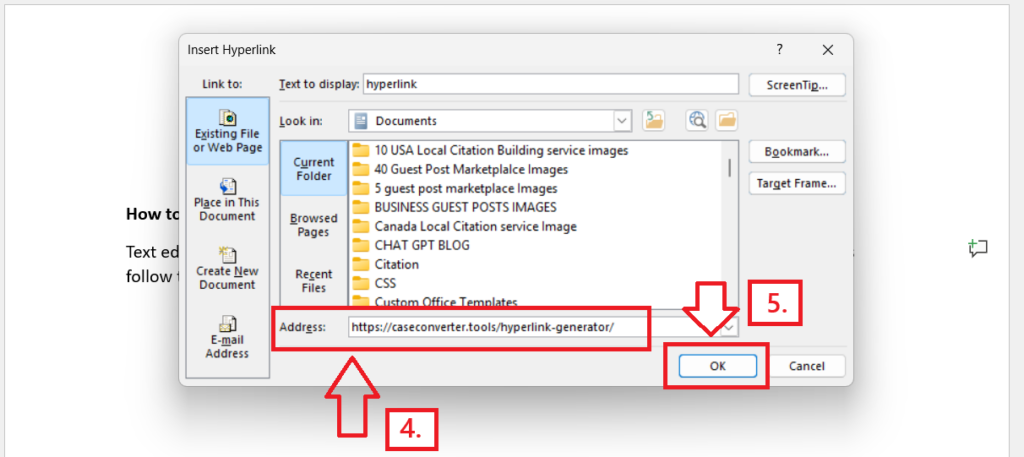
Step 2: Paste the URL and Click OK
In the Insert Hyperlink window, paste the website link into the Address field and click OK.
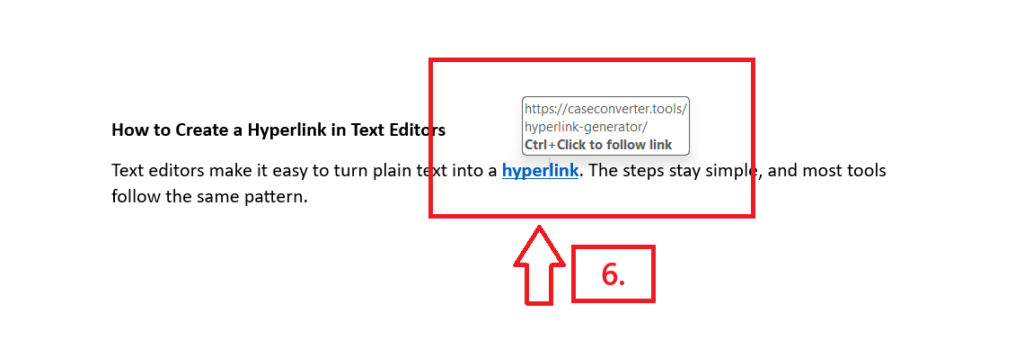
Step 3: Test the Hyperlink
Hold Ctrl and click the linked text to make sure it opens the correct webpage.
Create Hyperlink in Google Docs
Highlight the text you want to turn into a link. Press Ctrl + K on Windows or Cmd + K on Mac, then paste the URL. Google Docs may auto-link pasted URLs, but adding links manually gives better control over anchor text.

How to Create a Hyperlink in Email
Email links help readers take action without copying URLs. Most email tools use simple editors, so adding a hyperlink takes only a few clicks.
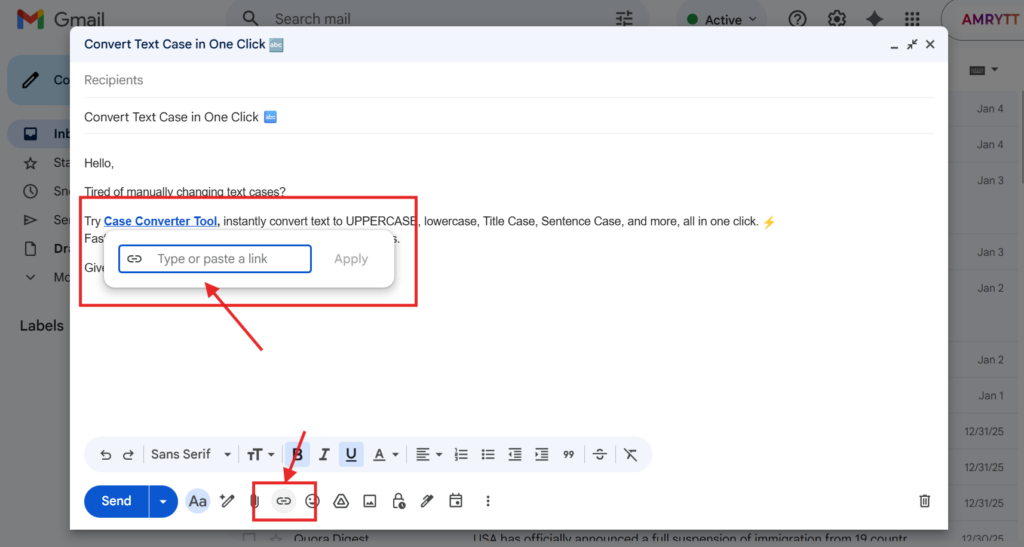
Create Hyperlink in Gmail
Select the text you want to link inside the email body. Click the link icon in the toolbar, paste the URL, and apply it to create a clickable link. Test the link before sending to make sure it opens correctly.
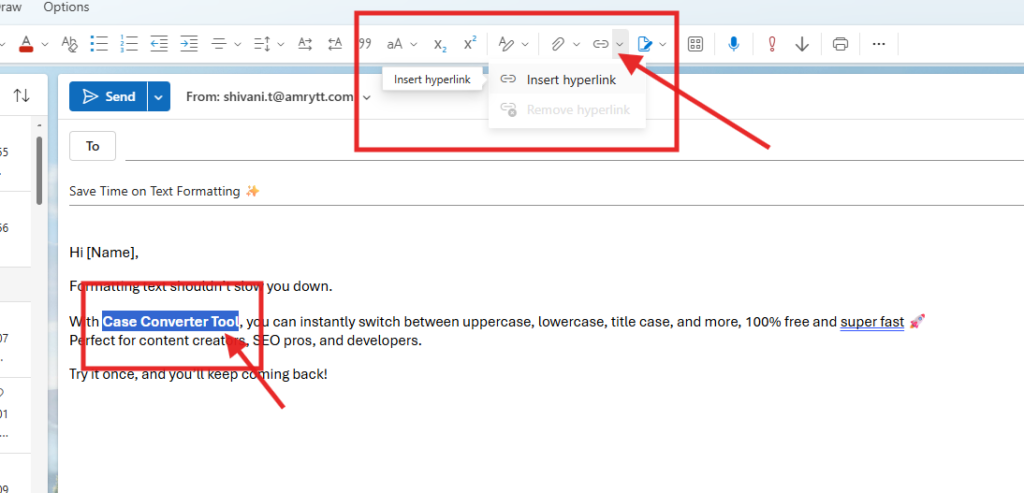
Create Hyperlink in Outlook
The steps in Outlook follow the same flow as Gmail. Select the text, choose the link option from the toolbar, and paste the URL to add a clean email hyperlink.
How to Create a Hyperlink in WordPress
Creating a hyperlink in WordPress is straightforward and doesn’t require any coding. WordPress gives you built-in tools to add links while writing or editing content.
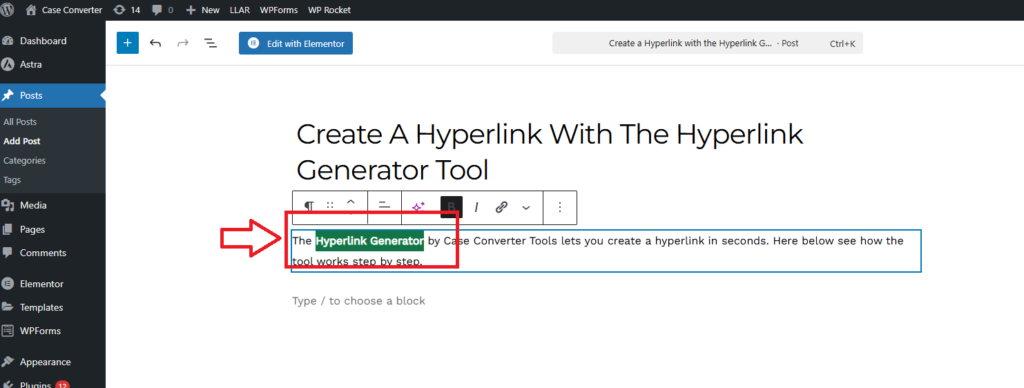
Step 1: Select the Text You Want to Link
Open your post or page in the WordPress editor. Highlight the word or sentence you want users to click. This text will become your anchor text, so choose something that clearly explains where the link goes.
Step 2: Configure Advanced Link Options
After adding the URL, click the Advanced options in the link box. WordPress gives you extra controls here:
- Open in new tab: Use this when linking to external websites so readers don’t leave your page.
- Mark as no-follow: Enable this if you don’t want search engines to pass link value, often used for external or reference links.
- Mark as sponsored: Use this for paid, affiliate, or promotional links to stay compliant with search engine guidelines.
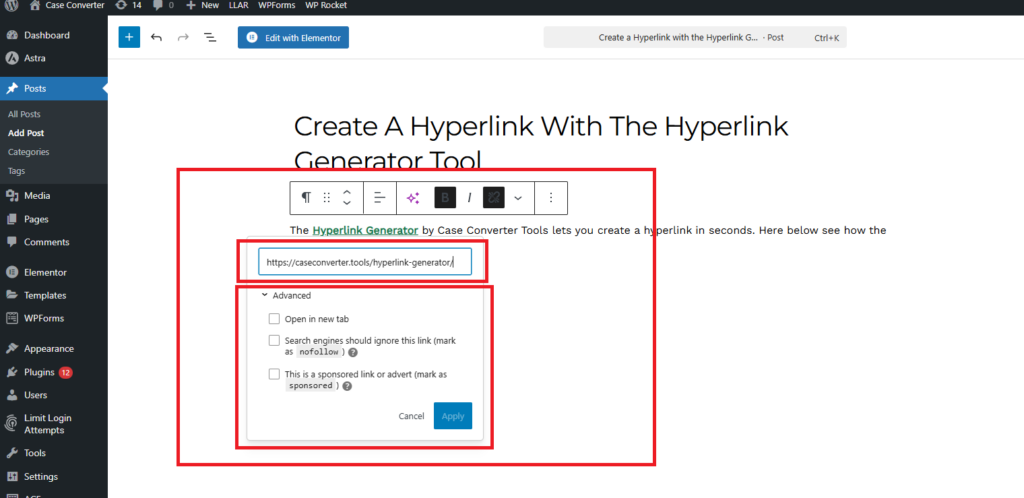
These options help control how your hyperlink behaves for users and search engines.
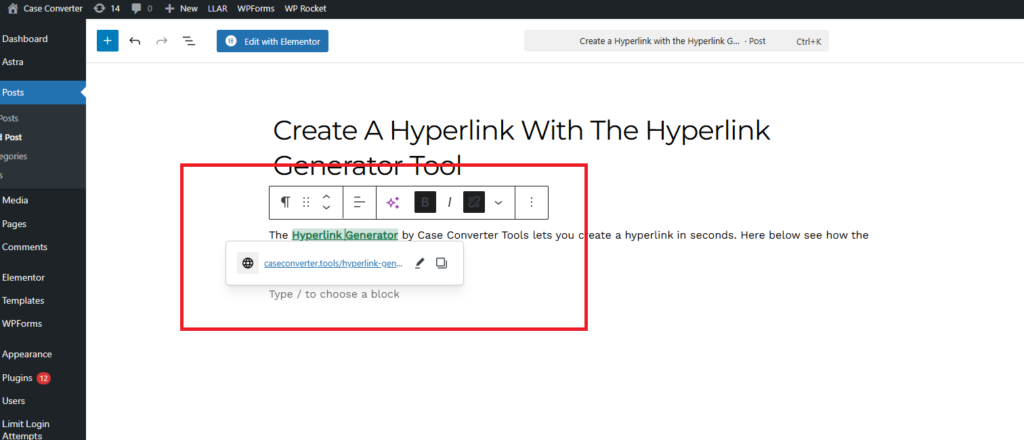
Step 3: Apply and Check the Link
Press Enter or click the apply button to save the link. Your text is now a clickable hyperlink. Click it once in preview mode to confirm it opens the correct page and works as expected.
How to Add Links on Social Media Platforms
Social media links help users move from posts to pages, products, or profiles. Each platform handles links in its own way, so knowing the right steps saves time and avoids errors. Below are clear steps for adding a link on popular social platforms.
1. How to Add a Link to Instagram Story
Open Instagram and start creating a story. Tap the sticker icon at the top and choose the link sticker. Paste the URL and customize the sticker text so users know where the link goes.
2. How to Add a Link to Instagram Bio
Open your profile and tap Edit Profile. Add your URL in the website field and save changes. The hyperlink appears below your bio and stays visible to all visitors.
3. How to Add a Link to Facebook Post
Paste the URL directly into the post box. Facebook creates a preview automatically. You can delete the raw URL and keep the preview for a cleaner post.
4.How to Add a Link to X (Twitter)
Paste the link into the tweet text. Keep enough characters to explain what the link opens so users understand the context.
5. How to Add a Link to LinkedIn Post
Add the URL in the post editor. LinkedIn generates a preview image and title, which helps improve clicks and visibility.
How to Create a Hyperlink Using an Online Tool
Manual linking works well, but online tools make the process faster and cleaner. A hyperlink generator removes guesswork and helps you build ready-to-use links without writing code. This is useful for websites, emails, and documents where speed matters.
Create a Hyperlink with the Hyperlink Generator Tool
The Hyperlink Generator by Case Converter Tools lets you create a hyperlink in seconds. Here below see how the tool works step by step.
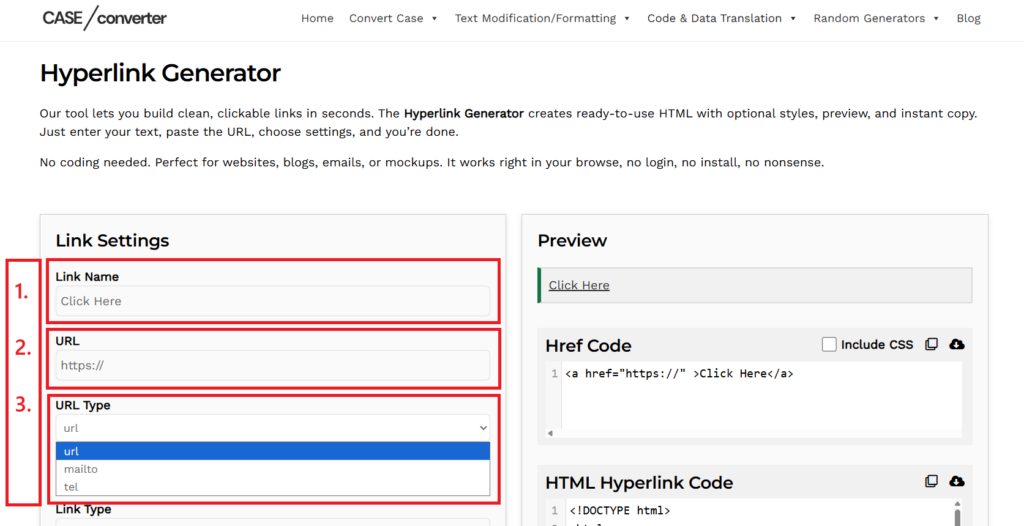
Step 1: Add Link Text, URL, and URL Type
Start by entering the link name and pasting the URL. Choose the URL type, such as web, email, or phone, so the link works correctly.
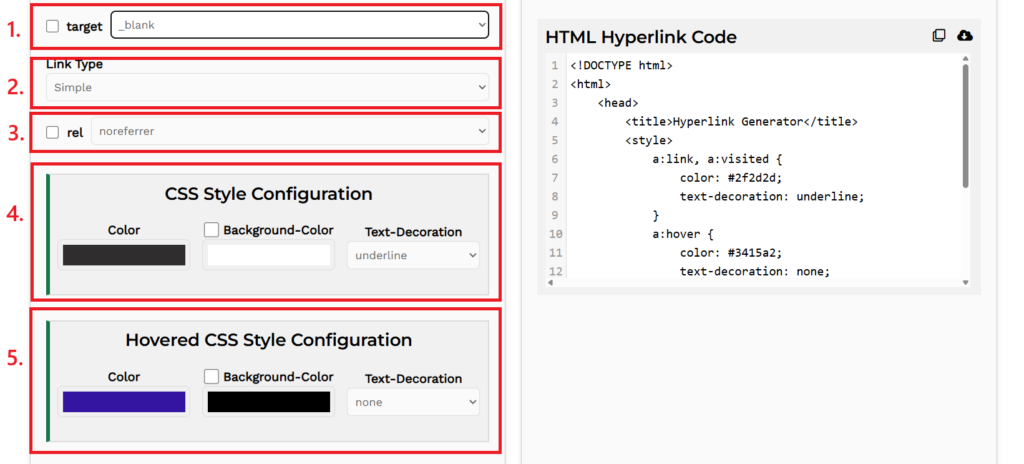
Step 2: Set Link Options and Styles
Choose whether the link opens in a new tab using the target option. Pick the Link Type, add rel values if needed, and adjust text or hover styles in the CSS sections. These settings control how the hyperlink looks and responds.
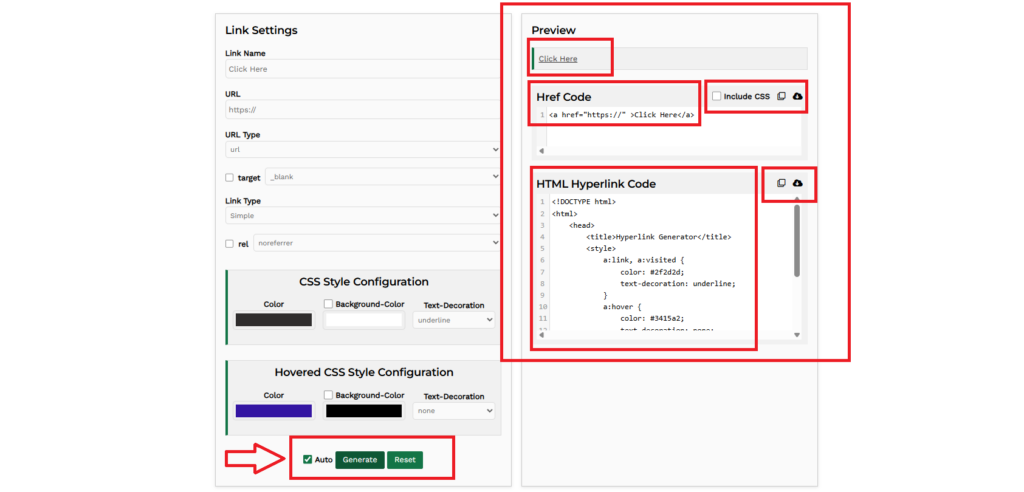
Step 3: Preview and Copy the Code
Check the live Preview to confirm the link works as expected. Copy the href code or the full HTML code and paste it into your site, email, or document. The link is ready to use.
Try the Hyperlink Generator
Want to create a clean hyperlink without writing code? Use our free Hyperlink Generator to build clickable links in seconds. Just add text, paste a URL, choose settings, and copy the ready-to-use code.
Conclusion
Creating a hyperlink is a simple skill that works across many tools and platforms. Once you know the steps, adding a clickable link becomes quick and reliable. Clear links help users move, act, and find the right information faster.
You can create links manually using HTML, editors, emails, and social platforms. You can also save time by using an online hyperlink generator for clean and ready-to-use code. Pick the method that fits your task and always test links before sharing.
FAQs About Hyperlinks
What is a hyperlink used for?
A hyperlink connects text or elements to another page, file, or action.
Can I add a link to an Instagram story?
Yes, you can add a clickable link using the link sticker in stories.
How do I make text clickable?
Select the text, add a URL, and apply the hyperlink option.
Can images have hyperlinks?
Yes, images can work as clickable links in HTML and documents.
Why is my hyperlink not working?
The URL may be broken or formatted incorrectly, so always test the link.