
Adding hyphens between words sounds simple, and most of the time, it is. But use them in the wrong place, skip them where they’re needed, or mix them up with dashes, and your text starts working against you.
Hyphens shape how readers interpret meaning, how search engines read your URLs, and how polished your writing looks overall. Used correctly, they make your text tighter, clearer, and easier to scan.
This guide walks you through exactly how to add hyphens between words for readable text formatting, with clear rules, real examples, and step-by-step instructions for the tools you’re already using.
- What Is a Hyphen? (And What It’s Not)
- Why Adding Hyphens Between Words Improves Readability
- When to Add Hyphens Between Words: The Core Rules
- When NOT to Add Hyphens Between Words
- How to Add Hyphens Between Words on Different Platforms
- Common Hyphen Mistakes to Avoid
- Quick Reference — Hyphen Rules Cheat Sheet
- Conclusion
What Is a Hyphen? (And What It’s Not)
A hyphen ( – ) is a short punctuation mark used to connect two or more words together, either to form a compound word, link a prefix to a root word, or break a long word across two lines in a block of text.
It looks simple. And it is. But it gets misused constantly, mostly because people confuse it with its longer cousins: the en dash and the em dash.
Before we get into the rules, let’s clear that up once and for all.
Hyphen vs. En Dash vs. Em Dash
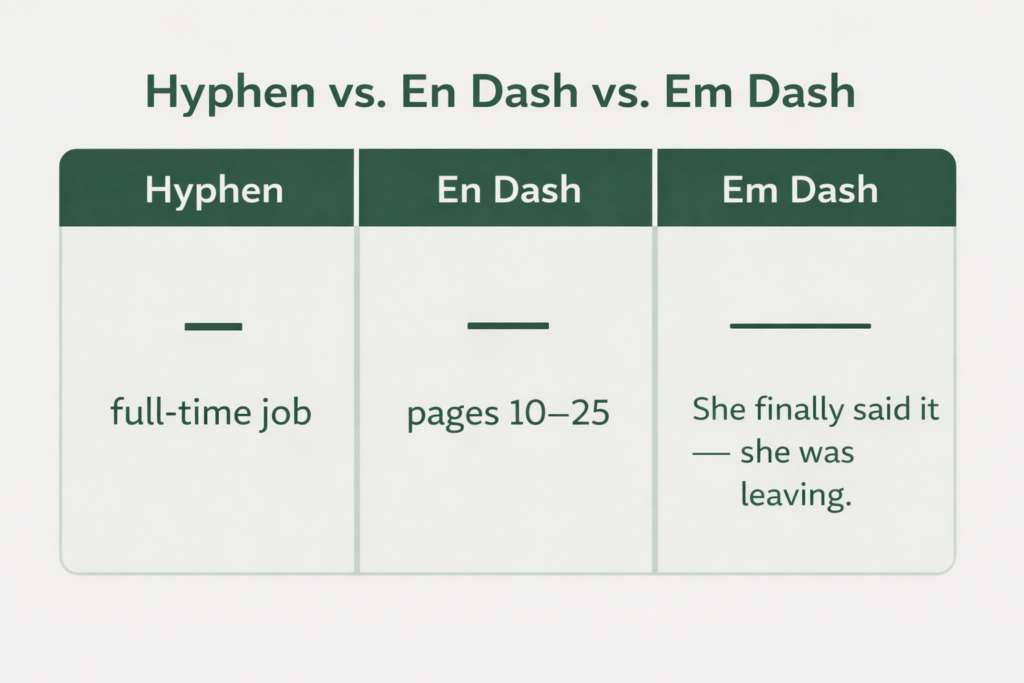
These three marks look almost identical at a glance, but they serve completely different purposes:
| Mark | Symbol | Primary Use | Example |
| Hyphen | – | Joining words or word parts | full-time job |
| En Dash | – | Ranges (numbers, dates, time) | pages 10–25 |
| Em Dash | — | Pause, interruption, or emphasis in a sentence | She finally said it — she was leaving. |
A quick way to remember it: the hyphen is the shortest mark and does the smallest job, connecting. The en dash is medium and handles ranges. The em dash is the longest and makes the biggest dramatic pause.
If you’re typing on a keyboard:
- Hyphen: Hit the minus key ( – ) directly
- En dash: Alt + 0150 on Windows / Option + Hyphen on Mac
- Em dash: Alt + 0151 on Windows / Shift + Option + Hyphen on Mac
What a Hyphen Actually Does to Your Text
At its core, a hyphen tells your reader: “these words belong together, read them as one unit.”
Without that signal, readers have to pause and figure out the relationship between words on their own. That extra mental work, even if it only takes a fraction of a second, interrupts the reading flow.
Take this example:
❌ “She runs a small business consulting firm.”
✅ “She runs a small-business consulting firm.”
In the first version, a reader could reasonably wonder whether the consulting firm is small, or whether it serves small businesses. The hyphen in the second version removes that ambiguity entirely.
That’s what hyphens do for readable text formatting: they remove guesswork and keep your reader moving forward without friction.
Why Adding Hyphens Between Words Improves Readability
Most writers think about readability in terms of sentence length, font size, or paragraph spacing. Hyphens rarely make the list. But they should.
A well-placed hyphen doesn’t just follow grammar rules. It actively shapes how smoothly your reader moves through your text. Here’s how.
It Removes Ambiguity in Compound Modifiers
When two words team up to describe a noun, a hyphen makes it clear they’re working together as a single idea. Without it, your reader has to do the interpretive work themselves.
Some examples where the hyphen changes everything:
“man eating shark” vs. “man-eating shark”
“disease causing bacteria” vs. “disease-causing bacteria”
“fast moving traffic” vs. “fast-moving traffic”
In each case, the unhyphenated version creates a split second of confusion. The hyphenated version is immediately clear. In long-form content where readers are already skimming, that clarity matters more than you’d think.
It Helps Readers Scan Faster
Readers don’t read every word. They scan, pick up patterns, and fill in gaps. Hyphenated compound words are easier to process at a glance because they visually signal a single concept rather than two separate ones.
This is especially true in:
- Blog post headers where readers decide in half a second whether to keep reading
- Bullet points where information is dense and compact
- Narrow text columns where word breaks happen more frequently
A reader who can scan your text without stumbling is a reader who stays on your page longer.
It Makes Your Writing Look More Polished
This one is harder to quantify, but easy to notice. Consistently hyphenated text signals that the writer paid attention to detail. It reads as intentional, controlled, and professional.
For blog posts and articles, that polish builds trust with your audience. For business documents and reports, it signals credibility. For web copy, it keeps the reading experience tight and focused.
Hyphens are a small investment with a noticeable return on readability.
When to Add Hyphens Between Words: The Core Rules
This is where most people get tripped up. Not because hyphen rules are complicated, but because nobody ever laid them out clearly in one place. Here they are.
Rule 1: Hyphenate Compound Modifiers Before a Noun
This is the most common use of hyphens in everyday writing. When two or more words join together to modify a noun and they appear before that noun, connect them with a hyphen.
- “a well-known author”
- “a fast-paced story”
- “a client-focused approach”
The key word here is before. When the same modifier appears after the noun, the hyphen drops.
- “The author is well known.” (no hyphen)
- “The story is fast paced.” (no hyphen)
- “Their approach is client focused.” (no hyphen)
Same words, different positions, different rules. The noun placement is everything.
Rule 2: Hyphenate with Certain Prefixes
Some prefixes almost always take a hyphen regardless of what follows them. The most common ones to know:
| Prefix | Example |
| self- | self-aware, self-employed |
| ex- | ex-partner, ex-president |
| all- | all-inclusive, all-knowing |
| half- | half-baked, half-hearted |
| cross- | cross-functional, cross-platform |
Other prefixes like pre-, re-, un-, over- generally do not need a hyphen unless skipping it creates an awkward or ambiguous word.
For example:
- reenter looks uncomfortable to read, so re-enter is preferred
- unnatural works fine without a hyphen
- pre-order vs. preorder, both are acceptable, but consistency within your content matters most
When in doubt, check a style guide. AP Style and Chicago Manual of Style sometimes differ on these calls.
Rule 3: Hyphenate Compound Numbers and Fractions
Any written-out number between twenty-one and ninety-nine always takes a hyphen. No exceptions.
- twenty-one, forty-five, seventy-eight, ninety-nine
Fractions also take a hyphen when they function as a modifier or adjective in a sentence.
- “a two-thirds majority”
- “a one-quarter share”
But when the fraction stands alone as a noun, the hyphen is optional.
- “Two thirds of the team agreed.” (acceptable without hyphen)
Rule 4: Use Hyphens to Avoid Awkward Letter Combinations
Sometimes a prefix and a root word create a strange-looking or hard-to-read combination. In those cases, a hyphen steps in purely for readability.
- re-enter (not reenter)
- shell-like (not shelllike)
- co-own (not coown)
- anti-inflammatory (not antiinflammatory)
The rule of thumb here is simple: if two identical vowels or confusing consonants collide at the prefix-root boundary, add a hyphen to separate them cleanly.
Rule 5: Hyphenate Long Words at Line Breaks in Justified Text
This one applies specifically to typeset documents, print layouts, and any text with justified alignment. When a long word needs to break across two lines to avoid uneven spacing, a hyphen signals that the word continues on the next line.
A few firm rules to follow when breaking words this way:
- Always break at a syllable boundary (ex-tra-or-di-na-ry, not ext-raordinary)
- Never break a word after just one or two letters
- Never hyphenate proper nouns (names, brands, places)
- Never break a word across a page turn
- Avoid more than two hyphenated line breaks in a row within the same paragraph
Most word processors like Microsoft Word handle this automatically when you enable the hyphenation setting, which we cover in the next section.
When NOT to Add Hyphens Between Words
Knowing when to use a hyphen is only half the job. Over-hyphenating is just as common a mistake as under-hyphenating, and it makes your text look cluttered and amateurish. Here’s when to leave the hyphen out.
After Adverbs Ending in -ly
This is the single most common hyphen mistake in everyday writing. When a modifier starts with an adverb ending in -ly, no hyphen is needed. The -ly ending already signals to the reader that the adverb modifies the next word, the hyphen is redundant.
- “a highly skilled developer” (no hyphen needed)
- “a poorly written report” (no hyphen needed)
- “a widely accepted theory” (no hyphen needed)
The confusion usually happens because writers apply Rule 1 too broadly. Compound modifiers before a noun need a hyphen, but -ly adverbs are the clear exception to that rule.
When the Modifier Comes After the Noun
As covered in Rule 1, compound modifiers only take a hyphen when they appear before the noun they describe. Once that modifier moves to the other side of the noun, the hyphen goes away.
- “a well-written article” (before the noun — hyphen needed)
- “The article is well written.” (after the noun — no hyphen)
Reading your sentence and identifying where the noun sits will always tell you whether the hyphen belongs or not.
With Compound Words Already in the Dictionary
Language evolves. Many words that once required a hyphen have since merged into single closed compounds through common usage. Before hyphenating, it is worth checking whether the word already exists as one unit.
Some common examples:
- email (not e-mail anymore)
- online (not on-line)
- database (not data-base)
- website (not web-site)
- keyboard (not key-board)
If you are writing for a specific style guide, check there first. If not, a quick dictionary search will confirm whether the compound has already closed up.
In Headings and Titles
Unless a hyphen is grammatically essential for meaning, avoid using them in article titles, blog headings, and subheadings. Headings are short, punchy, and read differently from body text. A hyphen in a heading can make it feel choppy or overly formal.
- “Best Practices for Remote Work” (cleaner without hyphen)
- “How to Write Long Form Content” (works without hyphen in a heading context)
If the hyphen genuinely changes the meaning, as in “small-business owner” then keep it. Otherwise, leave it out.
With Brand Names and Proper Nouns
Never add hyphens to proper nouns, personal names, or brand names unless the brand itself uses one. Hyphenating a name or trademark that does not use one is simply incorrect.
- United States (not United-States)
- New York Times (not New-York Times)
- Follow the brand’s own styling for their name, always
How to Add Hyphens Between Words on Different Platforms
The rules are the same everywhere. The method depends on where you are writing. Here is a straightforward breakdown for the most common platforms and tools.
How to Add Hyphens in Microsoft Word
Word gives you the most control over hyphenation of any writing tool. You have three options depending on how much manual involvement you want.
Option 1: Manual Hyphen (Quickest)
Simply place your cursor between the two words and press the hyphen key ( – ) on your keyboard. This works for compound modifiers, prefixes, and any deliberate hyphenation you are adding yourself.
Option 2: Automatic Hyphenation (Best for Long Documents)
This tells Word to automatically handle line-break hyphenation throughout your entire document. Best used for justified text in reports, white papers, or print-ready documents.
Steps to enable it:
- Open your document in Microsoft Word
- Click the Layout tab in the top ribbon
- Find the Page Setup group and click Hyphenation
- Select Automatic from the dropdown menu
Word will immediately begin hyphenating long words at line breaks throughout the document based on its built-in language rules.
Option 3: Manual Hyphenation with Control
This lets Word suggest hyphenation points and you approve or reject each one individually. Good for shorter documents where you want full oversight.
Steps:
- Click the Layout tab
- Click Hyphenation
- Select Manual
- Word will highlight each suggested hyphenation point one by one
- Click Yes to accept or No to skip each suggestion
Bonus tip: To limit how many consecutive lines end with a hyphen, go to Layout, click Hyphenation, then select Hyphenation Options and set a number in the Limit consecutive hyphens to field. Setting it to 2 keeps your text looking clean.
How to Add Hyphens in Google Docs
Google Docs does not have a built-in automatic hyphenation feature for line breaks. For deliberate compound word hyphenation, you simply type the hyphen key as needed. But for line-break control, here are your options.
For standard hyphens: Type the hyphen key ( – ) directly between words wherever the grammar rules call for it.
For a non-breaking hyphen (keeps a hyphenated word together on one line without splitting it across two lines):
Windows: Ctrl + Shift + Hyphen
Mac: Command + Shift + Hyphen
This is useful for hyphenated names, brand names, or compound words you never want to see broken across a line.
For automatic hyphenation in Google Docs: Google Docs does not support this natively as of now. Your best workaround is to draft in Google Docs and run a final hyphenation pass in Word before publishing or printing.
How to Add Hyphens in HTML and CSS
If you are formatting text for the web, CSS gives you clean control over automatic hyphenation without touching the HTML content itself.
The CSS hyphens property:
css
p {
  hyphens: auto;
  -webkit-hyphens: auto;
  -ms-hyphens: auto;
  word-break: break-word;
}
What each value does:
| Value | Effect |
| hyphens: none | No hyphenation at all |
| hyphens: manual | Only breaks where you place a soft hyphen in the HTML |
| hyphens: auto | Browser handles hyphenation automatically |
For manual control in HTML, you can insert a soft hyphen directly into your markup using the character entity ­. The browser will only show the hyphen if the word needs to break at that point.
html
<p>This is an extra­ordinary example of soft hyphens.</p>The soft hyphen stays invisible unless the word breaks at the end of a line, at which point the hyphen appears exactly where you placed it.
Browser compatibility note: The hyphens: auto property works well across Chrome, Safari, Firefox, and Edge. Always include the -webkit- prefix for full Safari support, especially on iOS devices where narrow text columns are common.
Language declaration matters: For CSS auto-hyphenation to work correctly, your HTML document needs a declared language attribute. Without it, the browser does not know which hyphenation dictionary to apply.
html
<html lang="en">
That one line at the top of your document unlocks proper automatic hyphenation across the entire page.
How to Add Hyphens in URLs, Slugs, and File Names
This is the one area most hyphen guides skip entirely, and it is worth paying attention to if you care about SEO and file organisation.
Always use hyphens, not underscores, in URLs.
Google treats a hyphen as a word separator. An underscore is treated as a connector, meaning Google reads how_to_add_hyphens as a single word rather than four separate ones.
“how-to-add-hyphens-between-words” (Google reads 6 separate words)
“how_to_add_hyphens_between_words” (Google reads 1 string)
For ranking purposes, the hyphenated slug wins every time.
The same logic applies to file names. If you are uploading images, PDFs, or documents to a website, name them with hyphens between words rather than spaces or underscores.
“hyphen-rules-guide.pdf” (clean, readable, SEO-friendly)
“hyphen rules guide.pdf” (spaces get encoded as %20 in URLs — messy)
“hyphen_rules_guide.pdf” (underscores hurt discoverability)
Quick rule to remember: Hyphens separate. Underscores connect. For URLs and file names where you want each word to be read individually, hyphens are always the right choice.
Platform Quick Reference
| Platform | Manual Hyphen | Auto Hyphenation | Non-Breaking Hyphen |
| Microsoft Word | Hyphen key | Layout, Hyphenation, Automatic | Ctrl + Shift + Hyphen |
| Google Docs | Hyphen key | Not available natively | Ctrl/Cmd + Shift + Hyphen |
| HTML/CSS | ­ in HTML | hyphens: auto in CSS | with hyphen |
| URLs and File Names | Use hyphen between all words | N/A | Avoid spaces and underscores |
Common Hyphen Mistakes to Avoid
Even careful writers make these. Most of them come down to applying a rule too broadly or confusing hyphens with other punctuation marks. Here are the ones that show up most often.
| # | Mistake | Wrong | Right | Fix |
| 1 | Hyphenating after -ly adverbs | a quickly-written email | a quickly written email | The -ly ending already connects — no hyphen needed |
| 2 | Using a hyphen instead of en dash for ranges | pages 10-25 | pages 10–25 | Use en dash (Alt + 0150 on Windows, Option + Hyphen on Mac) for all number and date ranges |
| 3 | Hyphenating compound words that have closed up | e-mail, web-site, on-line | email, website, online | Check the dictionary — many old hyphenated compounds are now single words |
| 4 | Forgetting suspended compound hyphens | short and long term goals | short- and long-term goals | When two modifiers share a base word, carry the hyphen forward to both |
| 5 | Mixing up hard and soft hyphens in Word | extraor-dinary appearing mid-word after copy-paste | Clean word with no stray hyphen | Review text carefully after copying from Word into any other platform or CMS |
| 6 | Over-hyphenating in headlines | Best-Practices-For-Remote-Teams | Best Practices for Remote Teams | Only hyphenate in headings when meaning is genuinely unclear without it |
A good habit: any time you type a hyphen, run a quick two-second check, is the modifier before or after the noun, does the adverb end in -ly, and has the compound word already closed up in common usage? Those three questions alone will catch the majority of hyphen errors before they make it to publish.
Also Read: Snake Case vs Camel Case
Quick Reference — Hyphen Rules Cheat Sheet
No need to memorize every rule. Bookmark this table and check back whenever you are unsure. It covers every major hyphenation situation you will run into in everyday writing.
When to Use a Hyphen
| Situation | Hyphen? | Example |
| Compound modifier before a noun | Yes | a well-known author |
| Compound modifier after a noun | No | the author is well known |
| Adverb ending in -ly before a modifier | No | a highly skilled developer |
| self-, ex-, all-, half-, cross- prefixes | Yes | self-aware, ex-partner, all-inclusive |
| Written numbers from 21 to 99 | Yes | twenty-one, forty-five, ninety-nine |
| Fractions used as modifiers | Yes | a two-thirds majority |
| Fractions used as standalone nouns | Optional | two thirds of the team agreed |
| Prefix creates awkward letter collision | Yes | re-enter, shell-like, co-own |
| Common prefixes with clean root words | No | unnatural, preload, reuse |
| Line break in justified text | Yes | break at syllable boundary only |
| Suspended compounds sharing a base word | Yes | short- and long-term goals |
| Compound words closed up in dictionary | No | email, website, online, database |
| Proper nouns and brand names | No | New York Times, United States |
| Inside headings and titles | Rarely | only when meaning is unclear without it |
| Number and date ranges | No | use en dash instead: pages 10–25 |
| URLs, slugs, and file names | Yes | how-to-add-hyphens-between-words |
Platform Shortcuts at a Glance
| Action | Windows | Mac |
| Hyphen | – (hyphen key) | – (hyphen key) |
| Non-breaking hyphen | Ctrl + Shift + Hyphen | Cmd + Shift + Hyphen |
| En dash | Alt + 0150 | Option + Hyphen |
| Em dash | Alt + 0151 | Shift + Option + Hyphen |
| Soft hyphen in HTML | ­ | ­ |
| Auto-hyphenation in Word | Layout, Hyphenation, Automatic | Layout, Hyphenation, Automatic |
| Auto-hyphenation in CSS | hyphens: auto | hyphens: auto |
Fix Hyphen Mistakes in Seconds ✔
Turn confusing hyphen rules into clean, readable text in seconds.
Paste your sentence and let the tool fix hyphen placement automatically.

Conclusion
Hyphens are small but they do serious work. Used correctly, they remove ambiguity, improve readability, and make your writing look polished and intentional.
Keep these three things in mind and you will get it right almost every time:
- Compound modifiers before a noun need a hyphen
- Adverbs ending in -ly never do
- When unsure, check if the compound has already closed up in the dictionary
And do not forget, clean hyphenated URLs and file names are better for both readers and search engines.
Bookmark the cheat sheet in the previous section and use the 30-second decision guide whenever you hit a gray area. That is really all you need.