
Wavy Text Generator
Create custom wavy text instantly with this free Wavy Text Generator. Choose wave, arc, or circular paths, adjust amplitude and frequency, customize fonts and effects, and download high-quality PNG or JPG in seconds. No software or sign-up required, design professional wave text directly in your browser.
Preview
Click and drag on the canvas to draw a custom path
Create custom wave-style typography instantly with this Wavy Text Generator. Enter your text, choose a path (wave, arc, circle, or custom), adjust amplitude and frequency, and export your design in seconds. This free online wavy text generator works directly in your browser, no software or sign-up required.
Our tool lets you customize fonts, colors, background, and special effects like shadow, outline, hollow, and 3D bubble. You can also enable animation or upload a background image for more advanced designs. Download your final wave text as high-quality PNG or JPG, ready for social media, thumbnails, branding, or print use.
How to Make Wavy Text in Seconds
Creating professional-looking wavy text with this Wavy Text Generator takes less than a minute. Every setting is adjustable in real time, so you can instantly preview changes before downloading.
Step 1: Enter Your Text
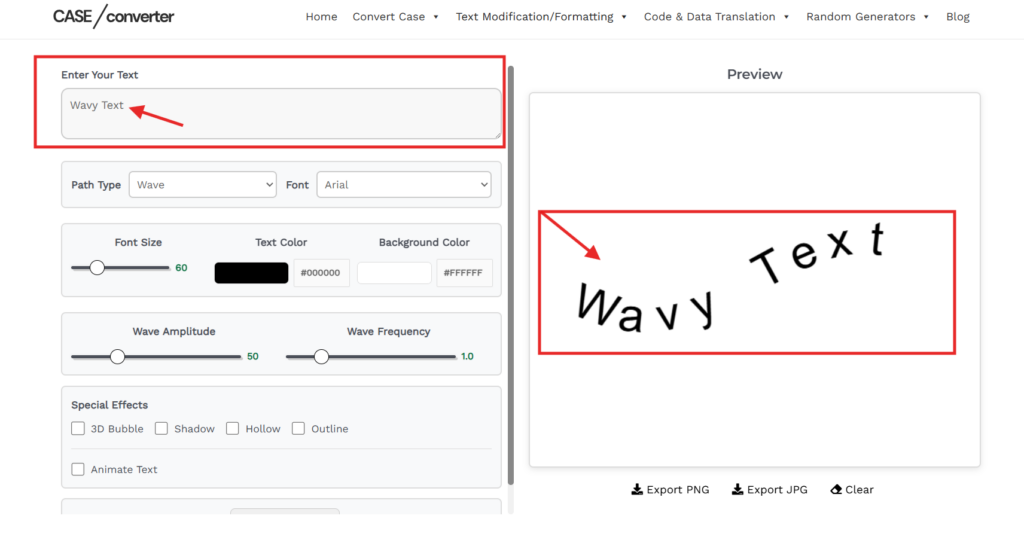
Start in the “Enter Your Text” box at the top left. Type or paste the word, headline, or phrase you want to transform.
As soon as you enter text, the live preview panel on the right updates automatically. This lets you see your wavy text design in real time before making further adjustments.
Step 2: Select Path Type & Font

Under the text box, choose your Path Type from the dropdown menu:
- Wave – Classic up-and-down wave motion
- Circle – Text wraps around a full circle
- Arc – Creates curved or semi-circular text
- Line – Straight alignment
- Custom (Draw) – Manually draw your own text path
Next, select a Font from the font dropdown. The tool offers multiple font styles (Arial, Helvetica, Times New Roman, and more), allowing you to match your branding or design theme.
Your changes instantly reflect in the preview panel.
Step 3: Adjust Font Size & Colors

Use the Font Size slider to increase or decrease the size of your text. Larger sizes work well for thumbnails and posters, while smaller sizes are suitable for social media graphics.
Then customize:
- Text Color – Choose any color using the color picker or HEX code.
- Background Color – Set a solid background color for your design.
These settings help improve contrast and readability in your wave text generator output.
Step 4: Customize Wave Amplitude & Frequency
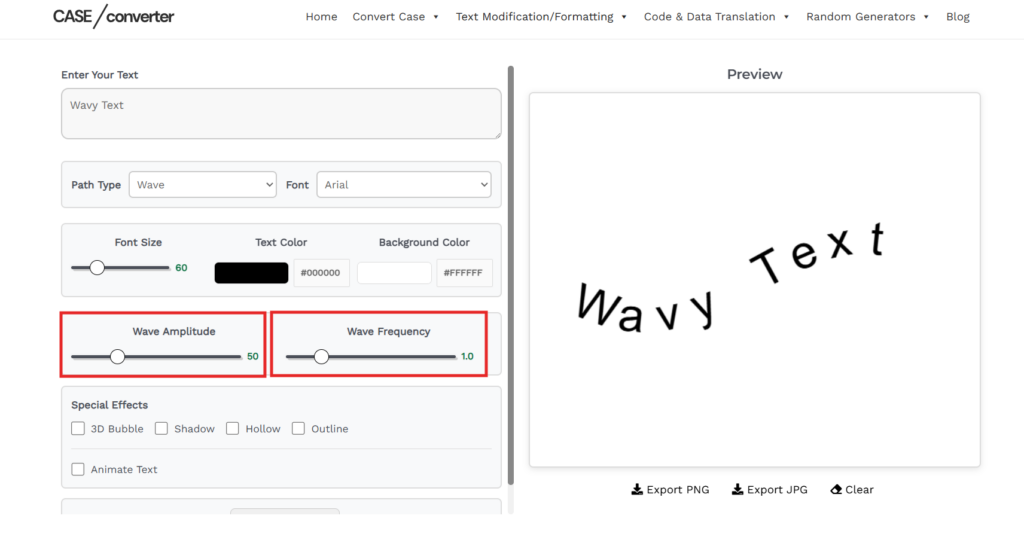
Fine-tune your wavy text effect using the two sliders:
- Wave Amplitude – Controls how tall the wave curves are.
- Lower value = subtle curve
- Higher value = dramatic wave
- Wave Frequency – Controls how many wave cycles appear.
- Lower value = fewer curves
- Higher value = more compact waves
Adjust both sliders until you achieve your desired wave text style.
Step 5: Apply Special Effects
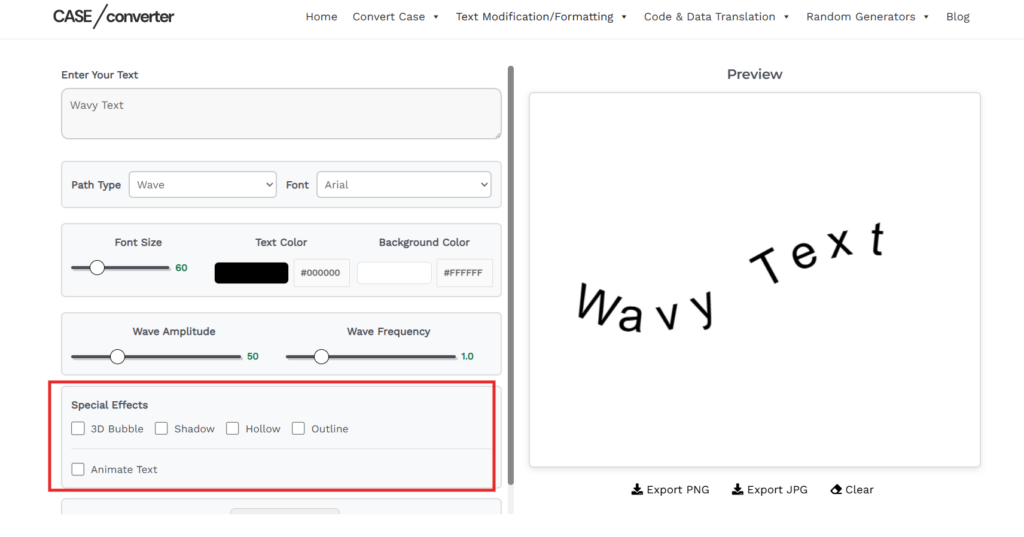
Under the Special Effects section, you can enhance your design with:
- 3D Bubble – Adds dimensional depth
- Shadow – Improves visibility
- Hollow – Creates outlined hollow text
- Outline – Adds border around text
You can combine effects to create bold or minimal wavy typography designs.
To create motion-based designs, enable the Animate Text option for animated wave effects.
Step 6: Upload Background Image (Optional)

Click Upload Image under the Background Image section to add a custom image behind your text.
This is useful for creating:
- YouTube thumbnails
- Social media banners
- Promotional graphics
- Posters
Your text will appear directly over the uploaded background in the preview panel.
Step 7: Use the Preview Controls
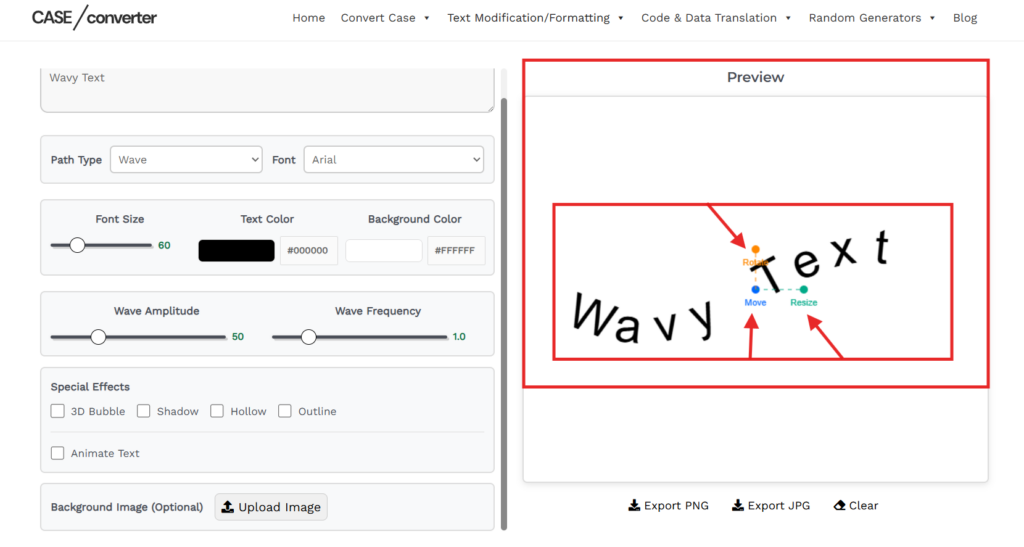
In the Preview area, you can interact with your design:
- Move – Reposition text
- Resize – Adjust size
- Rotate – Change angle
These controls allow precise placement before exporting your final wavy text image.
Step 8: Export Your Design

Satisfied, click:
- Export PNG – Best for high-quality graphics and transparency
- Export JPG – Smaller file size for web use
You can also use the Clear button to reset and start a new design.
Key Features of This Wavy Text Generator
Our Wavy Text Generator is designed to give you complete creative control while keeping the process simple and fast. Every feature is built to help you customize, preview, and export high-quality wavy text designs without technical skills.
Multiple Path Styles
Choose from Wave, Circle, Arc, Line, or Custom Draw to control how your text flows. Whether you need curved headings, circular logos, or freehand shapes, this wave text maker supports flexible path options.
Adjustable Wave Controls
Fine-tune the look of your wavy text using:
- Amplitude to control wave height
- Frequency to control wave repetition
This allows you to create subtle curves or bold retro wave effects.
Font & Size Customization
Select from various font styles and adjust size instantly. This ensures your wave text generator output fits perfectly for thumbnails, banners, posts, or print materials.
Advanced Text Effects
Enhance your design with built-in styling options:
- Shadow for depth
- Outline for better visibility
- Hollow for minimal styling
- 3D Bubble for bold, standout text
These effects improve readability and visual impact.
Color & Background Control
Customize both text and background colors. You can also upload your own background image to design ready-to-use graphics directly inside the tool.
Animation Support
Create animated wavy text with adjustable speed settings. This is ideal for digital content, social media visuals, and dynamic presentations.
High-Quality Export
Download your final design as PNG or JPG instantly. The exported wavy text image is ready for use in social media posts, branding, marketing materials, or print projects.
Our free online wavy text generator works directly in your browser, no installation, no registration, and no design software required.
Create Different Styles of Wavy Text
Our Wavy Text Generator allows you to create multiple design styles by adjusting path type, wave settings, fonts, and effects. Below are some popular variations you can easily design using this wave text maker.
Retro Wavy Text
To create bold retro wavy text, increase the amplitude for higher wave curves and slightly raise the frequency for a classic 70s-style effect. Choose thick or rounded fonts and apply 3D Bubble or Outline effects. Bright color combinations like orange, yellow, or pink enhance the retro look.
Aesthetic Wavy Text
For a softer aesthetic wavy text style, use lower amplitude settings to keep curves subtle. Select clean or minimal fonts and apply light pastel colors. Adding a soft shadow can improve readability while keeping the design simple.
Circular & Arched Text
Use the Circle or Arc path option to create curved headlines, logo text, or badge-style typography. Adjust the radius or curve intensity to control how tightly the text wraps around the shape. This is ideal for branding and emblem designs.
Animated Wavy Text
Enable the animation toggle to create animated wavy text for digital use. Adjust the speed to match your content style, slower for subtle movement, faster for attention-grabbing visuals. Animated wave text works well for online banners and social media graphics.
With flexible controls and real-time preview, this online wavy text generator helps you design different wave styles without needing advanced design software.
Frequently Asked Questions (FAQs)
1. What is a Wavy Text Generator?
A Wavy Text Generator is an online tool that transforms regular text into wave-style typography. It allows you to bend text along a wave, arc, or circular path and customize its appearance using fonts, colors, and effects. You can then download the final design as an image file.
2. How do I create wavy text online?
To create wavy text, enter your text, select a path style (Wave, Arc, Circle, or Custom), adjust amplitude and frequency, customize fonts and colors, and download the result as PNG or JPG. The live preview updates instantly as you modify settings.
3. Can I download my wavy text as a PNG?
Yes. This wavy text generator allows you to export your design as a high-quality PNG or JPG file. PNG format is recommended for better clarity and transparency support.
4. Is this Wavy Text Generator free to use?
Yes. This online wave text generator is completely free to use. You can create, customize, and download your designs without registration or installation.
5. Can I create animated wavy text?
Yes. You can enable the animation option to generate animated wavy text. Adjust the animation speed to control how fast the wave effect moves, making it suitable for digital content and social media visuals.
6. What is the difference between wavy text and curved text?
Wavy text follows a repeating up-and-down wave pattern, controlled by amplitude and frequency. Curved text typically follows a fixed arc or circular path. This tool supports both styles through different path options.
7. Does this tool work on mobile devices?
Yes. This online wavy text generator works directly in modern mobile and desktop browsers, allowing you to create and download designs without installing any software.
8. Can I upload my own background image?
Yes. You can upload a custom background image and place your wave text design over it before exporting. This helps you create ready-to-use thumbnails, banners, and promotional graphics.